Appearance
Settings
Focusfy has a dedicated settings page where you configure the timer, your pet, and the sounds.
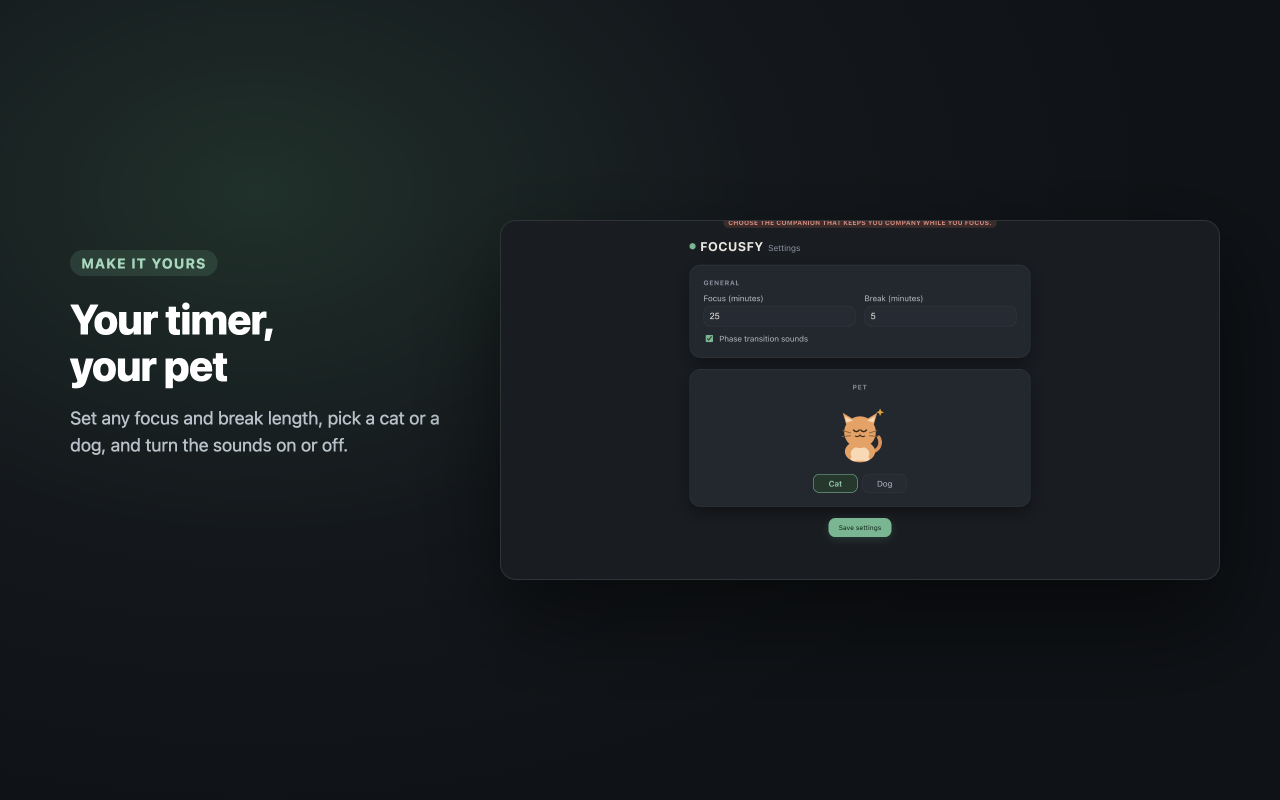
Open the Settings Page
- Click the Focusfy icon in your toolbar.
- In the Settings card, click the gear icon (top-right of the card).
The settings page opens in a new tab. If you already have it open, Focusfy brings that tab to the front instead of opening another one.
Focus & Break Minutes
| Setting | Default | What it does |
|---|---|---|
| Focus (minutes) | 25 | How long each focus session runs. |
| Break (minutes) | 5 | How long each break runs. |
Both fields accept any number of minutes greater than zero (for example 10, 30, or 45). The values you set are used the next time you start a focus session or a break.
TIP
You can also change the focus and break minutes directly in the popup's Settings card for quick adjustments.
Choose Your Pet
Pick the companion that keeps you company while you focus:
- Cat (default)
- Dog
A live preview above the options shows exactly how the pet will look. Your pet appears in the popup, on the session tab, during the celebration, and on the statistics page — and its mood follows the timer:
- Focusing — the pet works at a laptop.
- On a break — the pet naps.
- Idle / time is up / break over — the pet sits happily, ready to go.
Phase Transition Sounds
Focusfy can play a short sound when the phase changes:
- A rising chime when a focus session starts (and when a break ends, telling you it is time to focus again).
- A soft descending tone when the focus time is up (and when a break starts, telling you it is time to rest).
Use the Phase transition sounds toggle to turn them on or off. It is on by default. The sounds are generated in your browser — no audio files are downloaded and nothing is fetched from the internet.
Save Your Changes
Click Save settings at the bottom of the page. A Settings saved confirmation appears for a couple of seconds.
Only the fields you change are saved; everything else keeps its current value.
Where Settings Are Stored
Your settings (minutes, pet, and sounds) are stored locally in your browser using Chrome's extension storage. They survive closing the popup, restarting the browser, and restarting your computer. Nothing is sent anywhere.