Appearance
How To Use
Focusfy follows a simple loop: focus → break → focus. This page walks through the whole cycle, from starting a session to finishing a break.
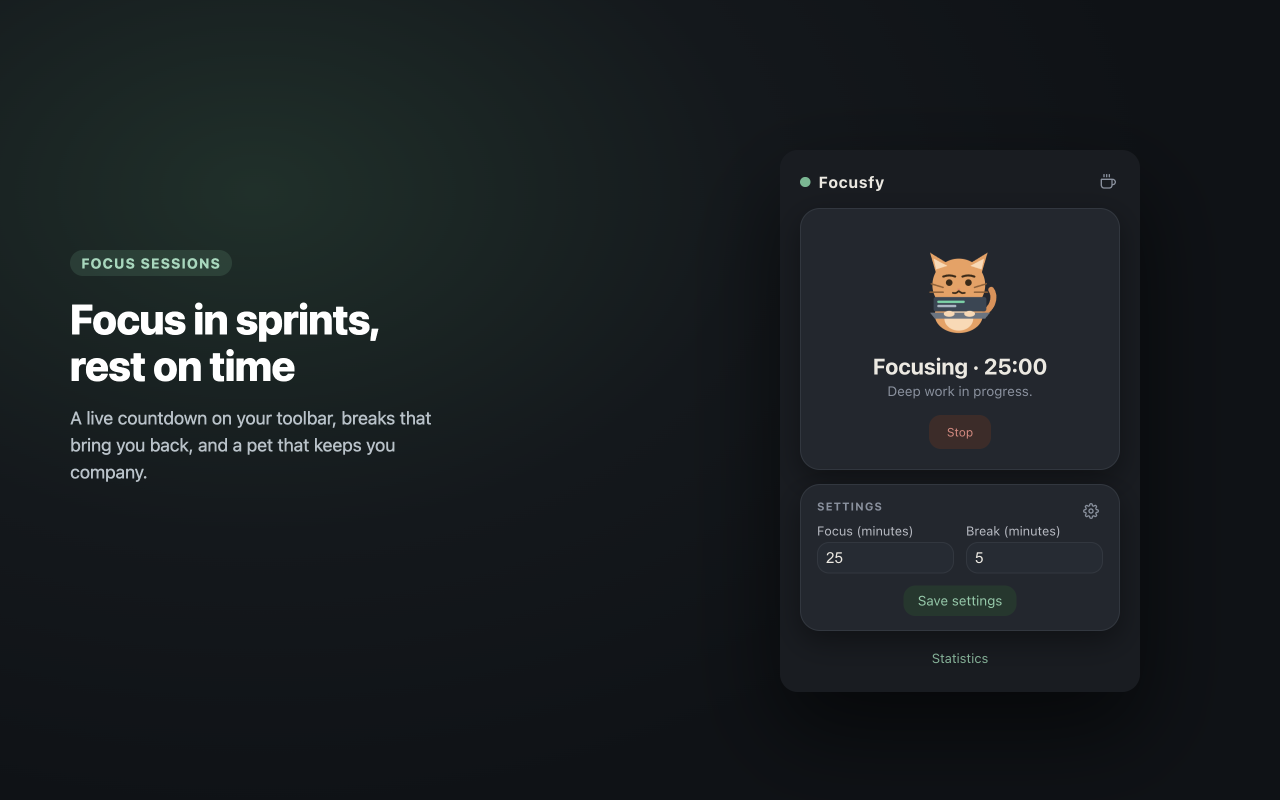
Start a Focus Session
- Click the Focusfy icon in your browser toolbar to open the popup.
- Check the Focus (minutes) field. The default is
25, but you can type any number of minutes. - Click Start focusing.
The popup switches to a Focusing status showing how many minutes are left. You can close the popup — the timer keeps running in the background.
Watch the Timer in Your Toolbar
While a session is running, the toolbar icon shows the minutes remaining, so you can glance at it without opening anything.
For the exact time, Focusfy shows a live countdown in minutes and seconds (mm:ss) that ticks every second:
- On the session tab, as a large countdown under the phase label.
- In the popup, next to the status (
Focusing · 24:59/Break · 04:59).
The icon and its badge also change color with the phase:
| Phase | Toolbar icon | Badge |
|---|---|---|
| Idle | Green timer | No badge |
| Focusing | Green timer | Green countdown (minutes left) |
| Break | Gray timer | Gray countdown (minutes left) |
| Time is up | Red timer | 0 |
What Happens When Focus Ends
When the focus time runs out:
- The badge turns red and shows
0. - A session tab opens (or is brought to the front if it is already open) and says Time is up for focus! with a Start break button.
- If sounds are enabled, you hear a short tone.
The tab is reused across the whole cycle, so your browser will not fill up with duplicate tabs.
Take a Break
- In the session tab, click Start break.
- A short celebration plays, and the break countdown appears (5 minutes by default).
- The tab stays open so you can watch the break timer.
While you are on a break you can also pet your pet: hover over it and it wakes up happy, click it and it bounces with a little burst of hearts. If you try to pet it while you are focusing, it refuses and reminds you to Focus! instead.
You can also stop the break early from the tab or the popup with Stop.
What Happens When the Break Ends
When the break time runs out:
- The session tab shows Break time is over. Ready to focus again? with a Start focusing button.
- Clicking Start focusing plays the celebration and then closes the tab, so you can get straight back to work.
If you are using another application when a phase ends, Focusfy raises the browser window so you actually see the session tab.
Stop a Session Early
You can stop at any time:
- In the popup, click Stop while focusing or on a break.
- In the session tab, click Stop.
Stopping returns the timer to idle and clears the toolbar badge.
The Session Tab
The session tab opens automatically when a phase ends, and it is where the "what next?" actions live. It also shows:
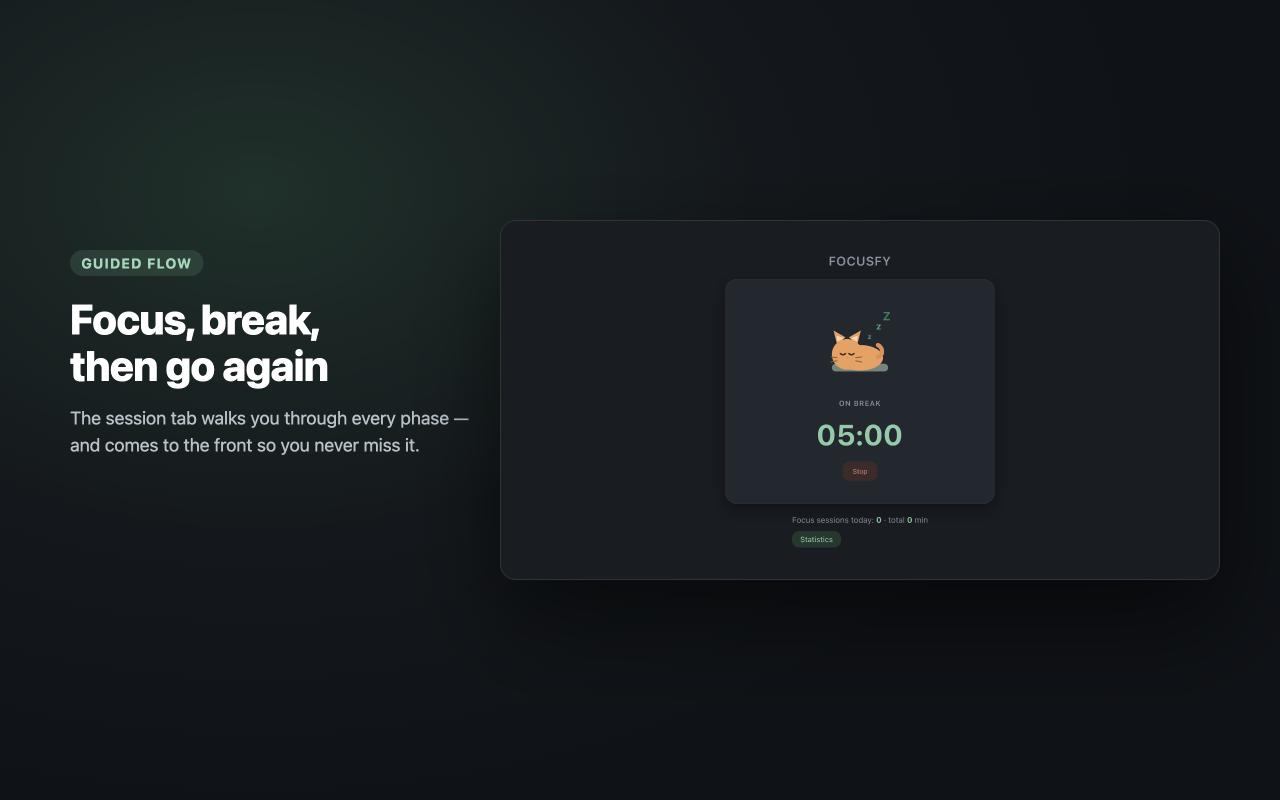
- The action for the current phase (Start focusing, Start break, or Stop).
- Today's summary — how many focus sessions you completed and the total focus minutes.
- A Statistics button to open your statistics page.
If you close the tab, Focusfy simply opens a new one the next time a phase ends.
The Popup at a Glance
- Pet + status — shows your pet and the current phase.
- Action button — the next relevant action (Start focusing, Start break, or Stop).
- Settings card — quick access to focus and break minutes. The gear icon opens the full Settings page.
- Statistics — the footer button opens your statistics.
- Coffee icon — top right of the popup; if you would like to support the project it opens the support page in a new tab.
Tips
- The timer is based on a real end time, so it stays correct even if you close the popup or Chrome restarts.
- You do not have to keep the session tab in front; the toolbar icon is enough.
- Turn sounds on or off any time in Settings.