Appearance
How To Use
Renamed
This extension was previously called Trello to Excel. It is the same extension under a new name, so older guides, screenshots and bookmarks that mention "Trello to Excel" still apply.
Export a Trello Board
- Open Chrome and go to the Trello board you want to export.
- Ensure the URL looks like
https://trello.com/b/.... - Click the extension icon to open the popup.
- Choose the Format: Excel (.xlsx) or CSV (.csv).
- For Excel, tick any card details you want in the file — labels, due dates, members, checklist, comments — or leave them all off for a simple title export. (Card details are not available in the CSV format.)
- Click Download Trello board. (For Excel, at least one option must be ticked — the button stays disabled otherwise, with a hint saying so.)
- Choose the save location in Chrome's file dialog.
For the Excel format, ticking at least one detail adds a second Details sheet (one row per card). See Export Format for the exact columns and how the CSV file is laid out.
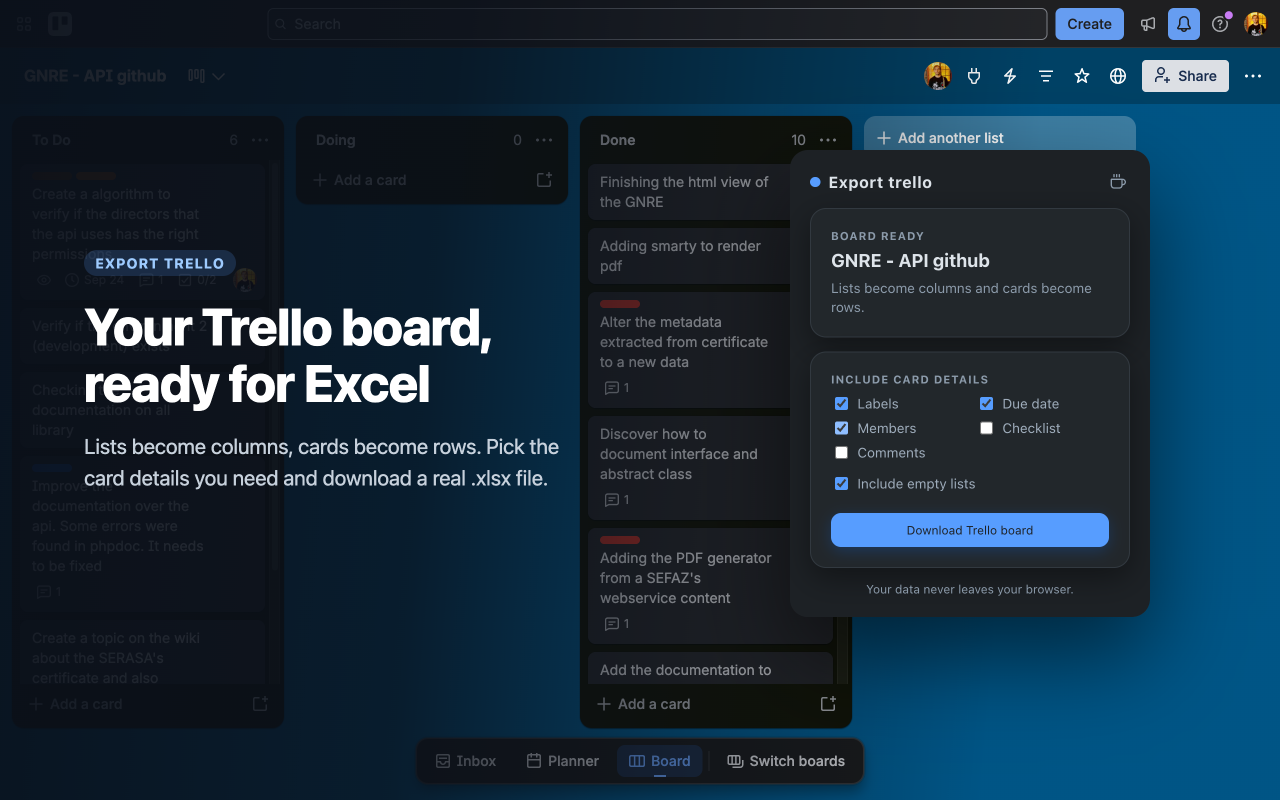
What You Will See in the Popup
- If you are on a Trello board page: The popup shows the board name, the format choice, the card detail checkboxes (Excel only), and the Download Trello board button.
- If you choose CSV: the card detail checkboxes are replaced by a short note, because a CSV has no second sheet — the file holds the lists-as-columns table only.
- If you are on trello.com but not inside a board: You will see Select a board first.
- If there is nothing to export (no lists, or a board with no cards yet): you will see Board to export not found, with a short explanation — and nothing is downloaded.
- If you are not on trello.com: You will see This extension works only on trello.com and an Open Trello button.
- If nothing is selected: the Download Trello board button is disabled and a hint asks you to select at least one option first.
- While the export is running: The button reads Working….
- After the file is saved: You will see Saved to your computer.
- The coffee icon in the popup header: if you would like to support the project it opens the support page in a new tab. Hover over it for a friendly nudge.
Tips
- Keep the Trello board tab active when exporting.
- Wait until board content is visible before clicking download.
- The downloaded file extension follows the format you chose:
.xlsxor.csv. - Choose CSV when you want a lightweight, plain-text file; choose Excel when you also want the optional card details in a second sheet.
Troubleshooting
No download button appears
- Confirm the active tab is on
trello.com. - Confirm you are inside a board URL (
/b/in the URL).
The popup says "Board to export not found"
The extension could not find any lists or cards on the page, so there was nothing to export and no file was created. This usually means the page is not a board with content, or the board has not finished loading.
- Make sure you are on a board URL (
/b/in the URL) that has cards. - Wait for the board to finish loading, then click Download Trello board again.
File downloads but appears incomplete
- Make sure the board and list content is loaded and visible before exporting.
- Retry export after refreshing the board tab.
Unexpected file name length
- The board title used in the downloaded file name is truncated to the first 20 characters.
Additional Help
For more information about how your data is exported, see Export Format.